Table of Contents
Getting clips from a YouTube video can be as simple as using YouTube's built-in "Clip" feature for a quick share, or as involved as downloading the video for a full-blown edit. The right method really boils down to what you're trying to accomplish—are you just sharing a funny moment with a friend, or are you creating polished social media content for your brand?
Turn Your YouTube Content into a Client Magnet
If you're a coach or consultant creating long-form content like webinars or interviews, you're sitting on a goldmine. Seriously. The problem isn't a lack of expertise; it's the soul-crushing task of sifting through hours of footage to find those golden nuggets for social media.
This guide is designed to get you past the content creation burnout. Forget the pressure to invent brand-new ideas every single day.
Instead, I’m going to show you a practical system. You'll learn how to turn one long video into a full week's worth of compelling Instagram Reels or LinkedIn posts. It's all about working smarter by repurposing the incredible expert content you've already created to consistently attract your ideal clients.
Why Clipping Your Videos Matters for Growth
Repurposing your content isn't just a clever time-saving hack; it's a core strategy for meeting your audience where they are. Short-form video is the language of social media today, and you have to speak it to grow your coaching or consulting business.
- Boosts Engagement: Let's be real, people have short attention spans. Short, punchy clips get watched, liked, and shared far more than long videos, which means more eyeballs on your work.
- Maximizes Your Content's Value: One deep-dive webinar can become dozens of individual content pieces. This stretches the lifespan of your hard work and multiplies its reach.
- Demonstrates Expertise Quickly: Clips let you deliver concentrated value. In just 30-60 seconds, you can showcase your knowledge and build trust with potential clients.
- Feeds the Algorithm: Platforms like Instagram and LinkedIn are hungry for consistent video content. Feeding them regularly helps your profile get discovered by the right people.
Short-form video is no longer a "nice to have"—it's the main way people communicate on social media. The coaches and consultants who master turning their expertise into bite-sized clips will win the attention of their ideal clients, period.
The Modern Content Workflow for Experts
The numbers don't lie. With over 70 billion daily views on YouTube Shorts alone, it's undeniable that short-form video is dominating our screens. For any content marketer, knowing how to clip your YouTube videos means you're riding a massive wave of mobile video consumption—and that’s a wave you want to be on.
To really nail this, it's worth understanding the different methods for how to get clips from YouTube videos because each has its place. In the sections below, we’ll break down the exact tools and techniques you can use, from YouTube's simple built-in features to powerful automated workflows that do the heavy lifting for you.
Making the call to repurpose your existing long-form content is a huge first step toward a sustainable content strategy. Seriously, it's the key to avoiding burnout.
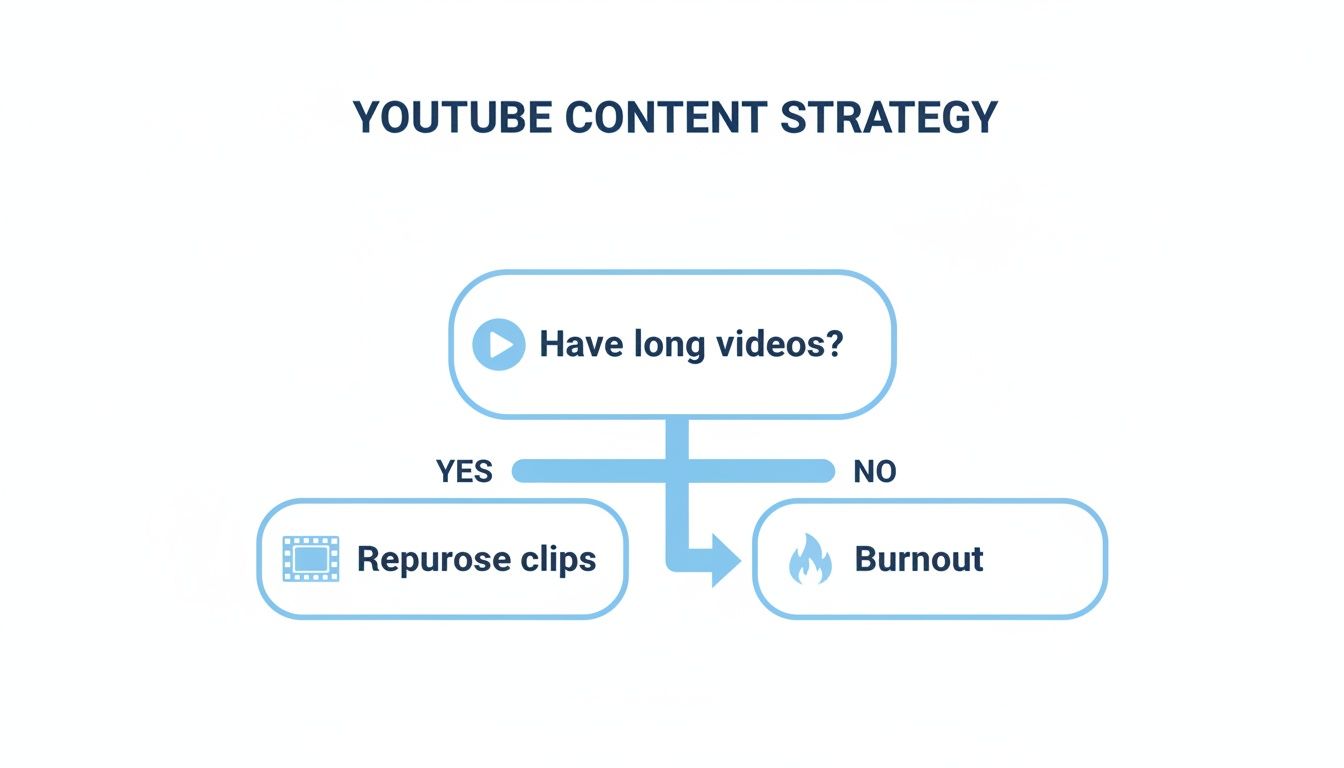
This flowchart sums it up perfectly: either leverage your existing video library for fresh content or face the constant grind of starting from scratch.
5 Common Clipping Mistakes Coaches Make (and How to Fix Them)
Before we get into the "how-to," let's fix the common issues that prevent coaches and consultants from getting real results with their clips. You can have the best advice in the world, but if it’s packaged incorrectly, no one will see it.
- Mistake: No Hook. Your clip starts with a slow "hello" or a vague intro.
- Fix: Start with the Punchline. Your first 3 seconds are everything. Grab a powerful, controversial, or intriguing statement from the middle of your video and put it right at the beginning.
- Mistake: Horizontal Video. You upload a 16:9 clip directly to Instagram Reels.
- Fix: Go Vertical (9:16). Always format your clips for a vertical, full-screen mobile experience. This grabs maximum attention and looks professional.
- Mistake: No Captions. You rely on people having their sound on.
- Fix: Add Dynamic Captions. Most users watch videos on mute. Use animated, easy-to-read captions to ensure your message lands 100% of the time.
- Mistake: No Clear Takeaway. The clip is interesting but doesn't offer a specific, actionable insight.
- Fix: Focus on One Big Idea. Every clip should solve one problem, answer one question, or share one powerful tip. Don't try to cram an entire webinar into 60 seconds.
- Mistake: No Call-to-Action (CTA). The clip ends, and the viewer just scrolls on.
- Fix: Tell Them What to Do Next. End every video with a clear, simple instruction. "DM me 'GROWTH' for my free guide" or "Comment your biggest takeaway below" turns passive viewers into active leads.
Weekly Content System
Here’s a simple weekly workflow to turn a long video into a week’s worth of engaging social media content.
- Friday (Record): Film a 30-minute in-depth video, such as a client Q&A or mini-training. Upload it to YouTube.
- Monday (Clip): Use Flowjin to extract 5–7 impactful clips from your video, each focusing on a single idea.
- Tuesday (Polish & Schedule): Add hooks, captions, and CTAs to your clips. Schedule them to go live daily on Instagram and LinkedIn.
This approach turns content creation from a daily task into a weekly routine.
Flowjin: The Essential Tool for Clipping YouTube Videos
Flowjin stands out as the only tool you need for clipping YouTube videos. It offers a comprehensive solution for extracting, editing, and sharing clips, streamlining the process from start to finish.
1. Sign Up and Dashboard Access
- Visit flowjin.com and register for an account.
- Once signed up, navigate to your dashboard to begin importing content.
2. Importing Your Content
- Upload your video or audio files directly to Flowjin.
- Check Flowjin’s documentation for a full list of supported formats and platforms.
3. Creating Clips with AI
- Click on your project after uploading to access the clipping menu.
- Configure your AI clipping by setting the language, choosing clip length, and trimming unnecessary sections to save processing credits.
- Click “Start Clipping” to let Flowjin process your content and generate clips, quotes, and text assets.
4. Reviewing Your Clips
After processing, preview your generated clips to decide if they’re ready to publish or need further editing.
5. Editing Your Clips
- Access the video editing environment by clicking “Edit” on any clip.
- Use the transcript panel and timeline to adjust clip content:
- Remove unwanted content by selecting and clicking the remove option.
- Add new content by selecting unhighlighted text and clicking “Add to Clip.”
- Use the search function to find and focus on specific concepts.
6. Editing Captions
- Correct transcription errors directly in the transcript.
- Hide captions for specific words while retaining the audio.
7. Adjusting Scene Framing
Customize scene layout and cropping using the “Edit Scene” options.
8. Adding Visual Elements
Incorporate shapes, frames, logos, and AI-generated or manual B-roll to enhance your video.
9. Text and Titles
- Customize captions, add animated titles, and use lower thirds for speaker information.
- Save design presets for future use.
10. Animations
Add animations to enhance engagement across text, captions, shapes, and video layers.
11. Exporting and Publishing
- Direct Download: Export your clip directly from the projects page.
- Publish to Social Media: Connect your social accounts to publish or schedule your clips, utilizing AI-generated captions optimized for each platform.
- Track published content in the Activity tab.
Flowjin simplifies the entire process, allowing you to focus on creating impactful content without the hassle of manual editing. By leveraging Flowjin, you ensure a smooth, efficient workflow for consistently attracting and engaging your target audience.
Editing and Sharing Clips for Maximum Impact
Getting a raw clip from a YouTube video is just the first step. The real magic, and the part that actually gets results, happens in how you package and share it. For coaches and consultants, a well-edited clip is the difference between being scrolled past and gaining a new lead.
This isn't about just trimming the start and end. It’s about completely re-engineering your content to thrive in the chaotic, fast-paced world of social media feeds. Your goal is to stop the scroll, deliver value in seconds, and tell the viewer exactly what to do next.
From Raw Cut to Polished Reel
A raw clip just doesn't have the punch needed for platforms like Instagram or TikTok. To make your content work, you need to add a few key elements. Think of it as putting your best content in its best outfit.
Here’s what that looks like in a real-world "before and after" scenario for a coach's clip:
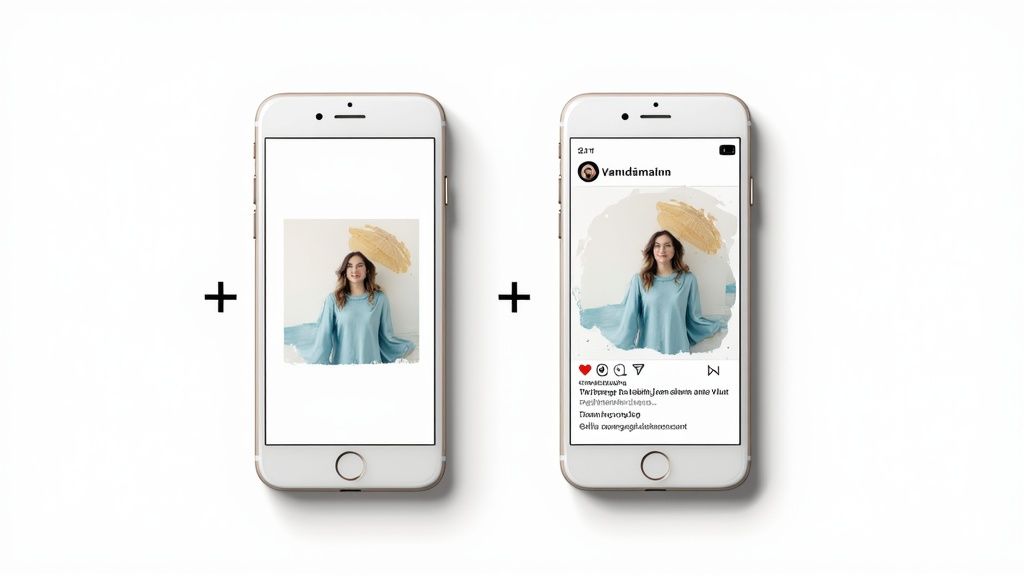
This transformation is everything. Your audience on Instagram and LinkedIn is looking for quick, impactful insights. A raw, unedited clip feels like homework, while a polished one feels like a gift.
The Social Media Optimization Checklist
Before you hit "publish," run every single clip through this tactical checklist. It’ll make sure your content is actually ready to perform.
In the wild west of YouTube, where an insane 500 hours of video are uploaded every single minute, making your clips stand out is a battle. According to Teleprompter.com, the scale of YouTube is massive, which makes creating polished, high-impact shorts a necessity, not a luxury. For those looking to skip the manual work, an AI YouTube Shorts maker can automate this entire process, from finding the best moments to adding captions and formatting.
Common Questions About Clipping YouTube Videos
Diving into content repurposing is exciting, but it definitely brings up a lot of questions—especially around the legal and technical stuff. Getting these details right is the key to clipping YouTube videos confidently without hitting any snags down the road.
Here are the most common questions I get from coaches and consultants, along with some straight-up answers.
Is It Legal to Clip Someone Else's Video?
This is the big one, and the honest answer is: it all depends on what you do with the clip.
If you’re just grabbing a link to share with a friend for personal use, you’re almost certainly fine. But the moment you republish that clip on your own social media, especially if it’s for your business, you’re wandering into potential copyright violation territory.
You might hear about "Fair Use," which can protect content used for things like commentary, criticism, or education. But be warned: it’s a notoriously gray legal area and not something you want to rely on.
The safest bet is always to get direct permission from the original creator. The second safest is to only use content that’s explicitly labeled with a Creative Commons license. When it's your own content? You have total freedom, of course.
What Is the Best Format for Instagram Reels?
If you want your clips to look crisp and professional on Instagram, you have to get the export settings right. The go-to format is MP4 using an H.264 codec.
For the best possible viewing experience on a phone, aim for these specs:
Don't worry about memorizing this. Pretty much any modern video editor—and certainly any automated clipping tool—will have a preset option like "Instagram Reels" that handles all these settings for you. It makes the whole process a breeze.
Can I Get Clips from a YouTube Video on My Phone?
You absolutely can. In fact, the mobile workflow for clipping videos is surprisingly powerful these days.
You can use YouTube's built-in "Clip" feature right from the mobile app to grab and share a link to a specific moment in seconds.
And if you need an actual video file you can download? Both iOS and Android phones have excellent screen recording tools built right in. On top of that, many of the AI clipping tools are designed to be mobile-first. You can just paste a YouTube link, let the AI work its magic, and then review, approve, and download the finished clips directly to your phone, ready to post.