Table of Contents
You want to create professional-looking videos, but the learning curve for editing software feels steep. Success isn't about mastering every complex feature. It's about learning a few key techniques that deliver the biggest impact, fast. These foundational video editing tips for beginners are designed to give you quick wins.
This guide cuts through the noise. We'll show you exactly how to apply 10 practical strategies to turn raw footage into polished, engaging content you can publish weekly. You'll learn a repeatable workflow to transform one long-form video, like a podcast or webinar, into dozens of social media clips.
We'll cover a prioritized workflow that helps you move from raw footage to a final product without wasting time. This includes:
- Core Techniques: Mastering simple but professional transitions and using B-roll to keep viewers engaged.
- Platform Optimization: Best practices for captions, aspect ratios, and visual composition for platforms like TikTok and Instagram Reels.
- Audio and Visual Polish: Simple methods for professional audio mixing and consistent color grading that make your videos look and sound incredible.
By focusing on these core concepts, you can stop editing blindly and start producing high-quality video content that builds your brand and drives results.
1. Start with the End in Mind: Plan for Each Social Platform Before You Edit
One of the most impactful video editing tips for beginners happens before you open your software. Instead of editing first and adapting later, identify every social media platform where your video will live. This "repurposing-first" mindset prevents rework and ensures every asset is optimized for its destination.
This strategy involves treating a single long-form recording, like a podcast or webinar, as a source for dozens of smaller content pieces. For example, a 45-minute interview can be chopped into 15 TikTok clips, 10 LinkedIn posts, and 5 Instagram Reels. Planning these clips in advance lets you edit them efficiently in batches.
How to do it:
- Create a Platform Spec Sheet: Document the aspect ratio, duration limits, and "safe zones" for captions for each target platform.
- Record for Repurposing: During filming, prompt speakers for standalone quotes or stories that don’t require external context.
- Tag Key Moments: As you review your raw footage, tag potential clips with categories like
quotable,data point, orstory. For an automated approach, you can learn how to get clips from YouTube videos.
Once your video is expertly edited, understanding how to post a video to LinkedIn the right way is crucial for maximizing its reach on that platform.
2. Master J-Cuts and L-Cuts for Smoother Transitions
To instantly elevate your content, master J-cuts and L-cuts. These are audio-led transitions that create a more professional viewing experience. A J-cut is when the audio from the next clip begins before the video appears. An L-cut is when the audio from the previous clip continues over the start of the next clip.
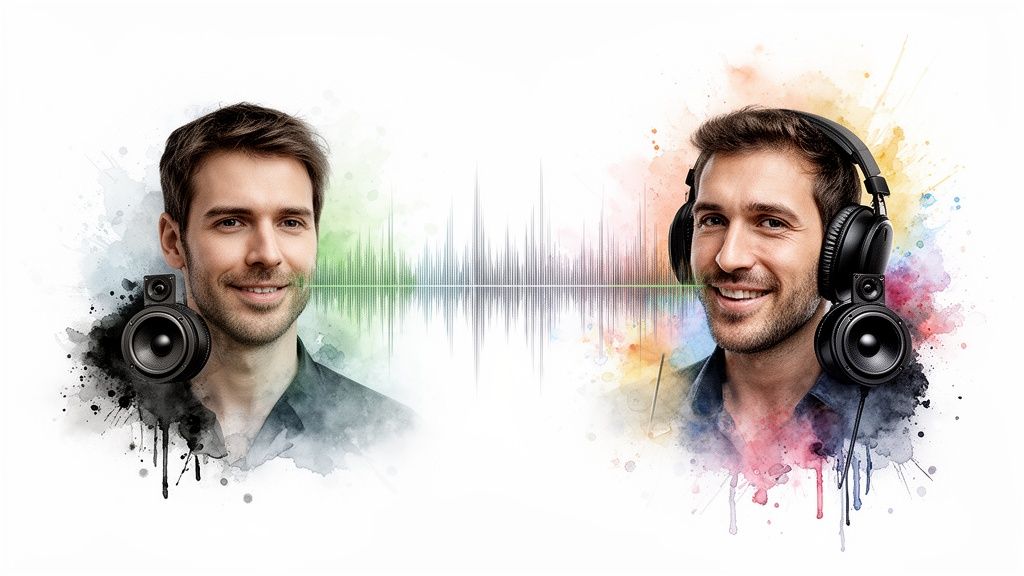
This technique creates a seamless narrative flow that feels more cinematic and less jarring than a simple hard cut. It guides the viewer's attention and makes scene changes feel natural. For example, use a J-cut to hear the next speaker's voice just before cutting to their face.
How to do it:
- Start with Small Overlaps: Begin by overlapping your audio by just 1-2 seconds. This is often enough to smooth the transition.
- Use J-Cuts to Introduce: A J-cut is perfect for introducing a new topic, speaker, or scene.
- Use L-Cuts to Conclude: An L-cut works well when you want to show a reaction or B-roll footage while a speaker finishes their thought.
- Practice with Interviews: Interview footage is the ideal training ground for J-cuts and L-cuts.
3. Use B-Roll to Prevent Viewer Fatigue
B-roll is supplementary footage cut into the main shot (A-roll) to break up visual monotony. In content like interviews or podcasts, showing a single speaker for too long causes viewers to lose interest. Inserting relevant B-roll clips every 5-10 seconds illustrates key points, adds context, and maintains engagement.
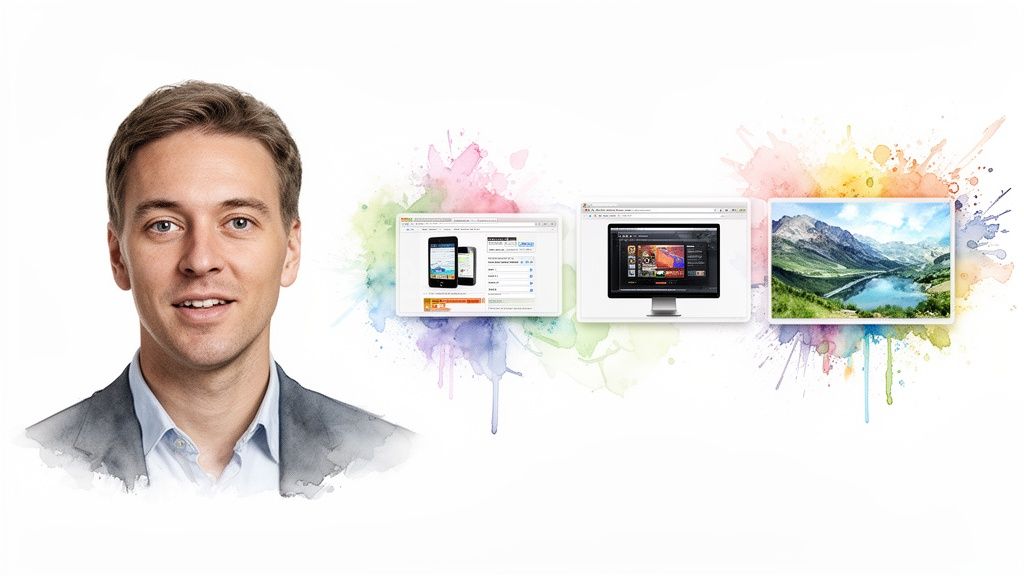
For example, a podcast clip discussing a new product becomes far more engaging when you show a screen recording of that feature. This technique transforms a static recording into a dynamic video that holds attention. For creators repurposing long-form content, Flowjin is an AI video repurposing tool that automatically adds relevant B-roll to your clips, saving you hours of searching for stock footage.
How to do it (manually):
- Create a B-Roll Folder: Before editing, organize all your supplementary footage into folders by theme (
office shots,product demos). - Plan B-Roll During Recording: Make notes of moments where specific visuals would be impactful.
- Aim for a 50/50 Split: For short social clips, a 50/50 balance between showing the speaker and showing B-roll is a great starting point.
- Sync Cuts to the Audio: Time your B-roll cuts to coincide with beats in the background music or important keywords.
4. Create a Consistent Editing Style Guide for Your Brand
To scale video production without sacrificing quality, establish a brand style guide. This document defines your video's visual identity, from fonts and colors to animation speeds. It ensures every video feels cohesive, whether it's created by an in-house editor, a freelancer, or an automated tool.
This approach transforms video editing into a streamlined, repeatable system. A strong style guide reduces decision fatigue and builds brand recognition. For example, HubSpot's consistent use of blue accents makes their clips instantly identifiable.
How to do it:
- Document Everything: Create a shared resource that details your brand's fonts, color hex codes, logo usage, and caption formatting.
- Establish Core Fonts: Choose 2-3 approved fonts for headings, body text, and captions to maintain consistency.
- Build Master Templates: Design reusable templates in your editing software for common video types like interviews and announcements. Understanding these branding rules is a key part of learning how to edit Instagram Reels for engagement.
- Test and Audit: Regularly test your styles on each social platform, as rendering can vary.
5. Implement a Smart Caption Strategy
With most social media video consumed with the sound off, your on-screen text is a primary communication tool. An effective caption strategy is one of the most crucial video editing tips for beginners because it directly boosts watch time and comprehension. Viewers should understand your message without hearing a word.
This approach goes beyond basic auto-captions. It involves using full transcription for dialogue and animated text to highlight critical data points. This layered approach ensures your core message is impossible to miss.
How to do it with Flowjin:
- Upload your video: Add a link from YouTube, Vimeo, or upload a file directly.
- Get AI-generated clips: Flowjin automatically finds the most engaging moments and generates short clips with accurate, word-for-word captions.
- Customize your brand: Set your brand colors, fonts, and logo once in Flowjin's Brand Kit. It will apply them to all your videos automatically.
- Export: Your video is ready to post with perfectly branded and readable captions.
How to do it (manually):
- Prioritize Readability: Keep captions to one or two lines. Use a high-contrast color scheme.
- Respect Safe Zones: Position text within the "title-safe area" (a 20% margin from all edges) to avoid being covered by platform UI.
- Synchronize for Pacing: Time your captions to appear just before a word is spoken.
- Highlight Key Quotes: Make the most impactful phrase bigger or use a different color to make it the visual focal point.
6. Use the Rule of Thirds for Better Composition
The Rule of Thirds is a classic design principle. Imagine your video frame divided into a 3x3 grid. Position key subjects and visual elements along the gridlines or at their intersections, rather than dead-center, to create a more dynamic and engaging composition.
This is especially critical for interview clips. By placing a speaker on the left or right vertical line, you create natural "negative space" on the other side. This space is perfect for adding text overlays or graphics without cluttering the screen.

How to do it:
- Enable Grid Overlays: Most cameras and editing software have a setting to display a 3x3 grid. Turn this on to help you visualize the composition.
- Give Your Subject "Look Room": When positioning a speaker, have them face toward the larger empty space in the frame.
- Reserve a Third for Graphics: Intentionally frame your shots so that one vertical third of the screen is relatively empty for adding text.
- Test on Mobile: Before finalizing, check how your composition looks in a 9:16 (vertical) aspect ratio.
7. Use the Hook-Story-CTA Structure for Social Clips
For short-form video, the Hook-Story-CTA framework is essential for grabbing and holding attention. This simple three-act structure is optimized for 15 to 60-second videos.
The formula captures interest in the first 1-3 seconds (the Hook), delivers your core message (the Story), and guides the viewer on what to do next (the Call to Action). For example: "This common mistake is costing you leads" (Hook), then explain the mistake and solution (Story), and end with "Register for our webinar" (CTA).
How to do it:
- Outline Before Editing: Write down your Hook, Story, and CTA to ensure your edit has a clear purpose.
- Perfect the First Three Seconds: Your hook must be clear and compelling by the three-second mark. Test it with the sound off.
- Deliver Value First: The "Story" portion should provide genuine insight or education.
- Extend the CTA: Keep your call to action on screen for at least 2-5 seconds. You can find more strategies for this in guides about creating a TikTok clip maker.
8. Master Basic Audio Mixing
Poor audio can ruin a great video. Mastering basic audio mixing ensures your message is clear and professional. This involves balancing dialogue, music, and sound effects so they work together.
The core principle is creating an audio hierarchy where the primary element, usually a person's voice, is always prominent. Techniques like normalization, noise reduction, and ducking transform muddy audio into a polished final product.
How to do it:
- Set Dialogue Levels First: Normalize your dialogue track to peak between -3dB and -6dB. This provides a strong, clear baseline.
- Use Audio Ducking for Music: Set background music to a much lower level, typically between -18dB and -24dB. Use "auto-ducking" to automatically lower the music when dialogue is present.
- Apply Noise Reduction Sparingly: Use tools to remove consistent background sounds like fan hum, but don't over-apply them.
- Check on Multiple Devices: Listen to your final mix on phone speakers and earbuds, as this is how most of your audience will experience it.
9. Develop a Systematic Workflow and File Organization
One of the most powerful video editing tips for beginners is organization. A systematic workflow and logical file structure are the foundation for speed and consistency. Instead of hunting for lost files, you establish a predictable process.
A marketing agency might use a folder structure like Client > Project Name > Date > Source > Cuts > Exports to keep every asset tidy. This system saves hours of administrative overhead and prevents mistakes.
How to do it:
- Create Project Templates: In your editing software, create a template project with your standard folder structure, branding elements, and fonts.
- Standardize Naming Conventions: Document a clear file naming system (e.g.,
YYYYMMDD_Platform_Topic_v1). - Use Cloud Storage: Set up a shared cloud drive (Google Drive, Dropbox) with primary folders like
Active ProjectsandArchive. - Implement a Review Checklist: Before exporting, use a checklist to confirm audio levels, captions, and branding are correct.
10. Use Color Correction and Grading for a Pro Look
Color correction fixes technical issues, while color grading applies a creative style. Together, they ensure your video looks professional and cohesive, even when combining clips from different cameras.
First, use color correction to adjust exposure, white balance, and saturation to make the footage look natural. Then, use color grading to apply a specific look or mood. For example, use a warm grade for a LinkedIn video or a crisp look for a tech tutorial.
How to do it:
- Correct First, Grade Second: Always fix fundamental exposure and white balance problems before applying creative styles.
- Use a Reference: Shoot a white balance card at the beginning of your recording to get a true white and color reference.
- Create Brand LUTs: Develop one or two signature color grades (LUTs or "Look Up Tables") that reflect your brand and apply them consistently.
- Prioritize Skin Tones: When grading, make your primary subject’s face look natural first, then adjust the rest of the scene.
- Avoid Over-Saturation: A subtle increase of 10-20% is often all you need.
Turn Tips into Action Without the Manual Work
You now have 10 actionable video editing tips for beginners to create better videos. You know how to plan your edits, use professional transitions, add B-roll, and apply brand consistency.
But the real challenge for busy creators and marketers isn't learning what to do—it's finding the time to do it. The difference between a thriving content strategy and one that stalls is a repeatable, scalable system. A 60-minute podcast can easily turn into 10+ hours of manual editing to create a few social clips. This is where the workflow becomes a bottleneck.
The key to unlocking your video potential is to automate the most time-consuming parts of this process. Imagine a workflow where you don’t have to manually:
- Find the best moments in your long-form videos
- Add branded captions one by one
- Resize clips for different platforms
- Search for and add relevant B-roll
This is where an AI-powered workflow becomes a game-changer. Instead of spending your time on repetitive technical tasks, you can focus on high-level strategy. An intelligent system can handle highlight detection, captioning, and branding, allowing you to implement these best practices without the manual labor.
By embracing an automated workflow, you're building a sustainable system that lets you publish more frequently and drive better results from your video marketing.
Ready to skip the learning curve and automate your video editing? Flowjin is an AI video repurposing platform that turns your long-form content into dozens of social-ready clips in minutes, complete with branded captions, smart B-roll, and layouts. Stop editing and start publishing today.


